How to connect KoboToolbox forms to NexusPortal?
2026-03-20•By Alexandre Annic
If you already collected data using KoboToolbox, you can easily connect it to NexusPortal,
without needing any migration. This connection works both ways:
- ➡️ Your data is saved in the NexusPortal database\
- ⬅️ Updates made in NexusPortal are replicated in KoboToolbox
- ➡️ Updates made in KoboToolbox are replicated in NexusPortal
This ensures your data stays synchronized and consistent over time.
NOTE
Updating a form connected to KoboToolbox may slow down data updates due to the limitations of the KoboToolbox API.
Create a new library asset
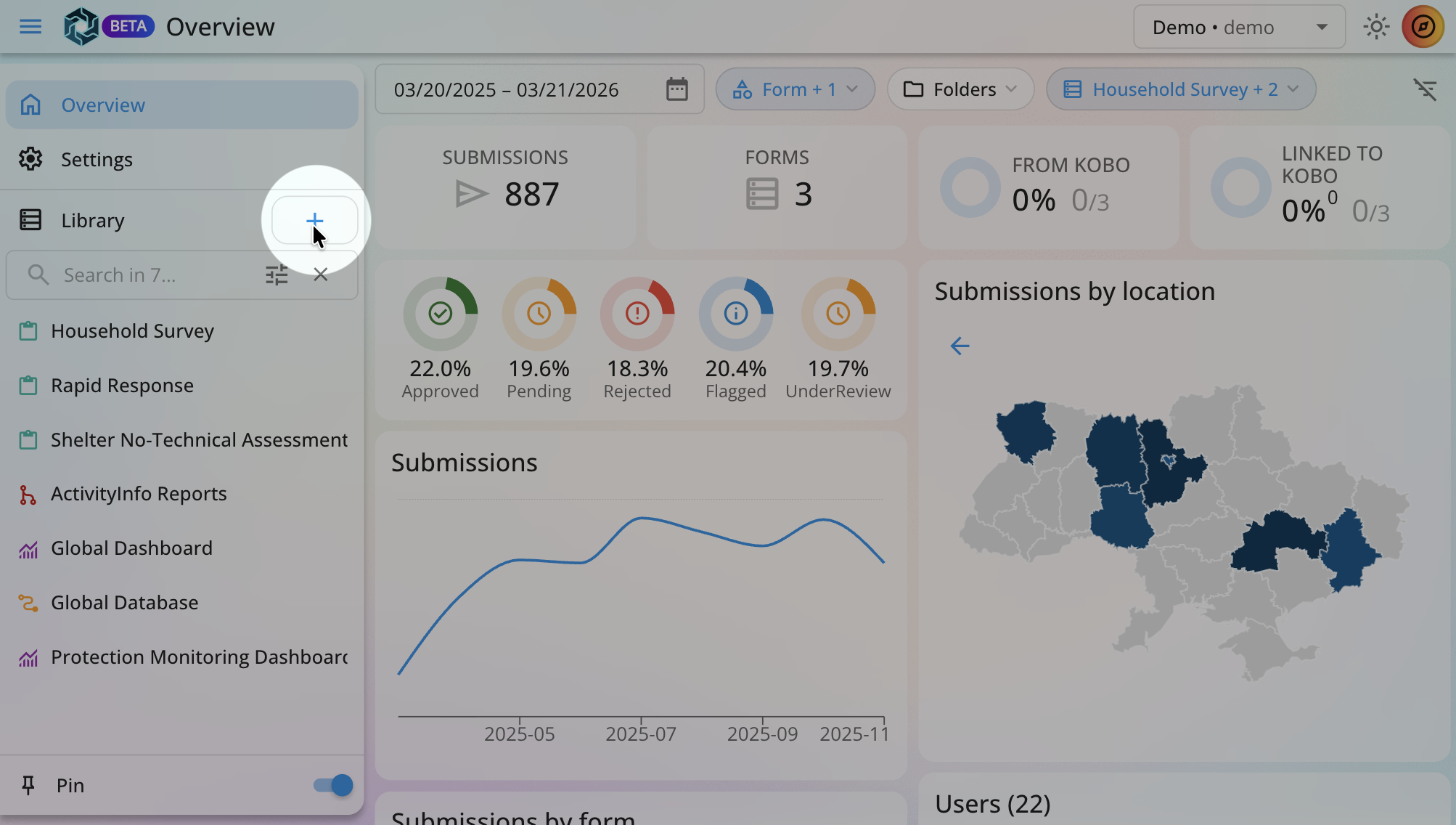
Create a new Kobo account
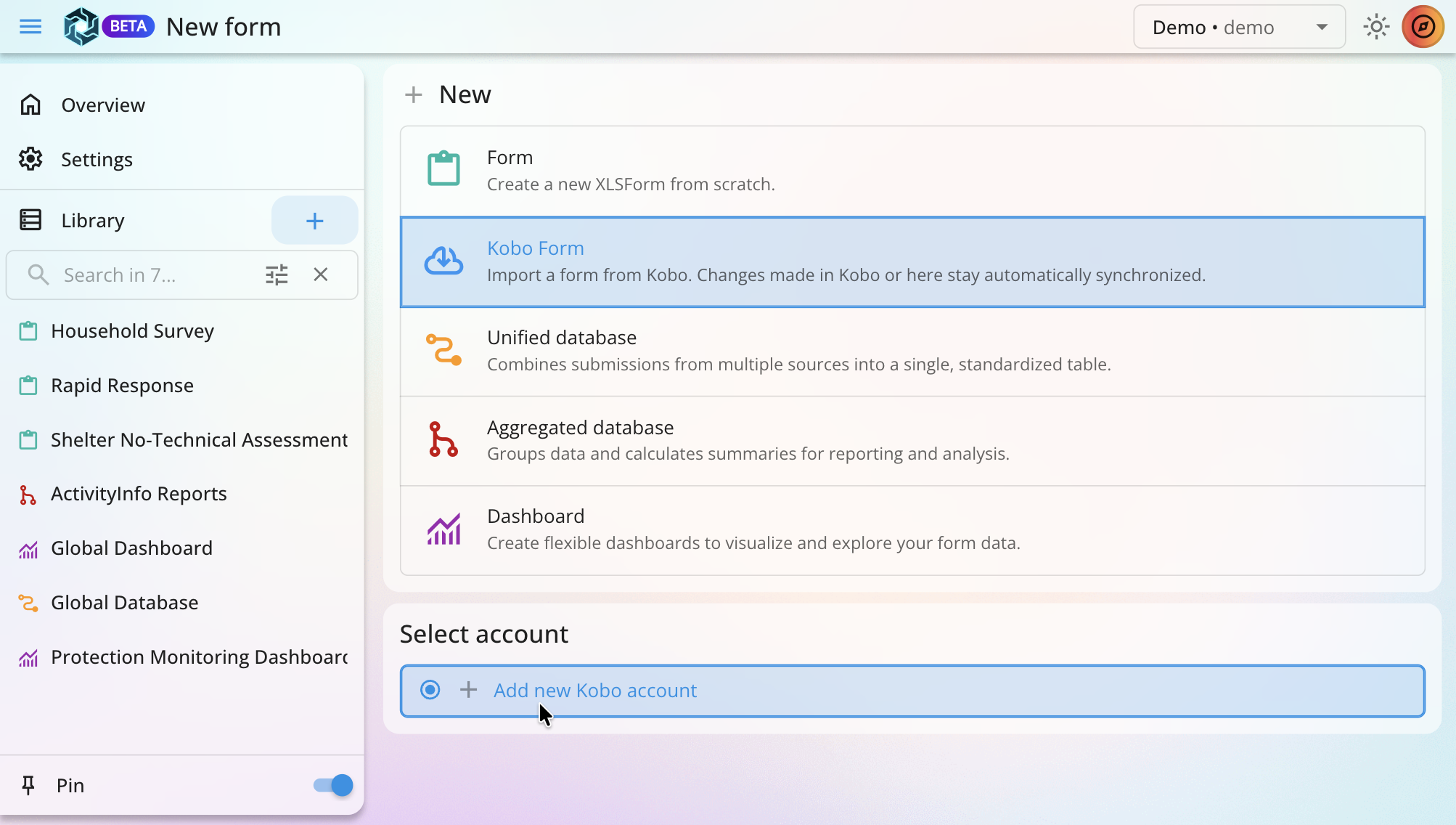
Fill in your Kobo account information
Some servers are preconfigured. If yours is not listed, you can manually enter the server details.
Your API token can be found in the Settings page of your Kobo account.
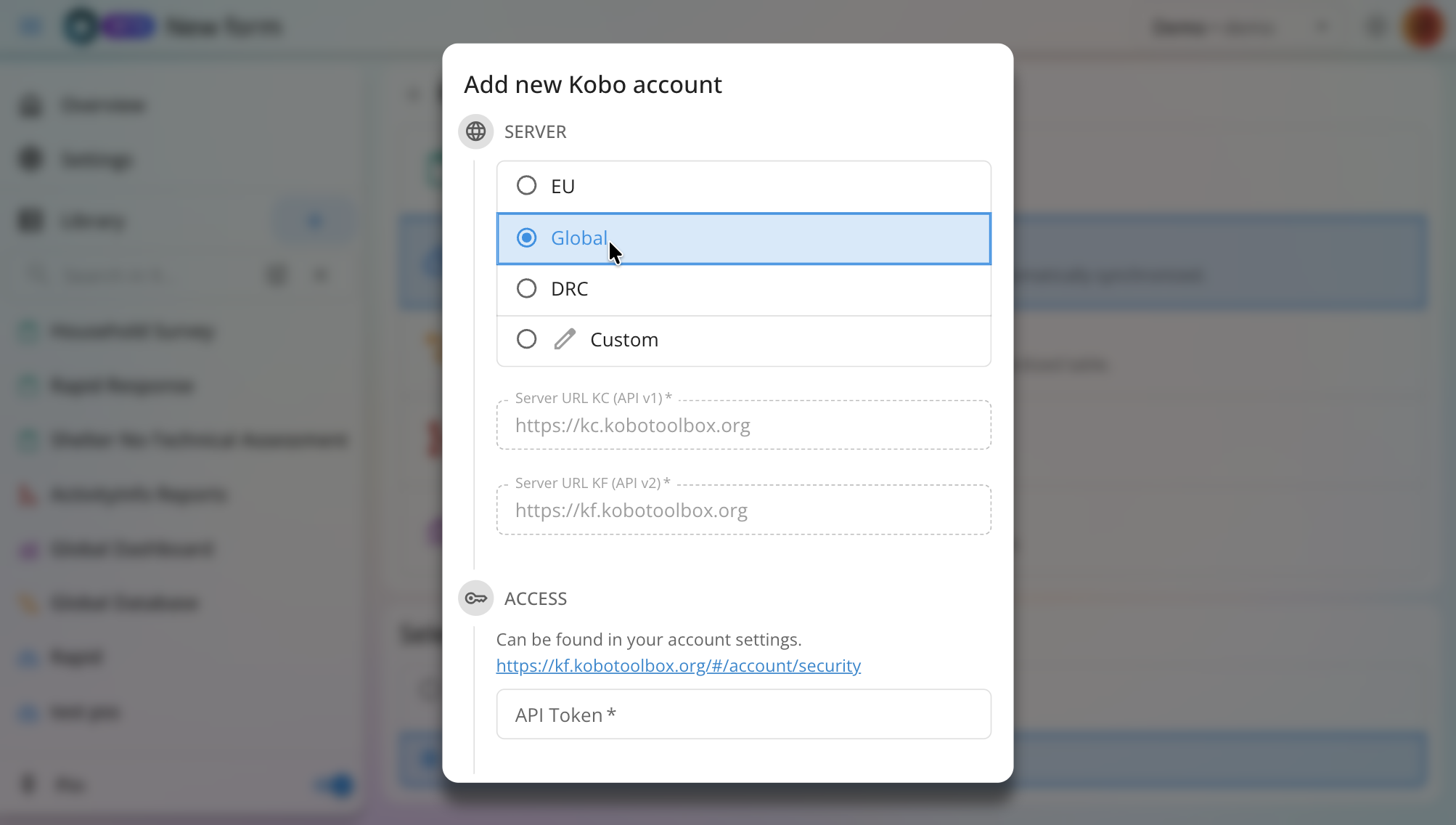
Select form(s) you want to connect
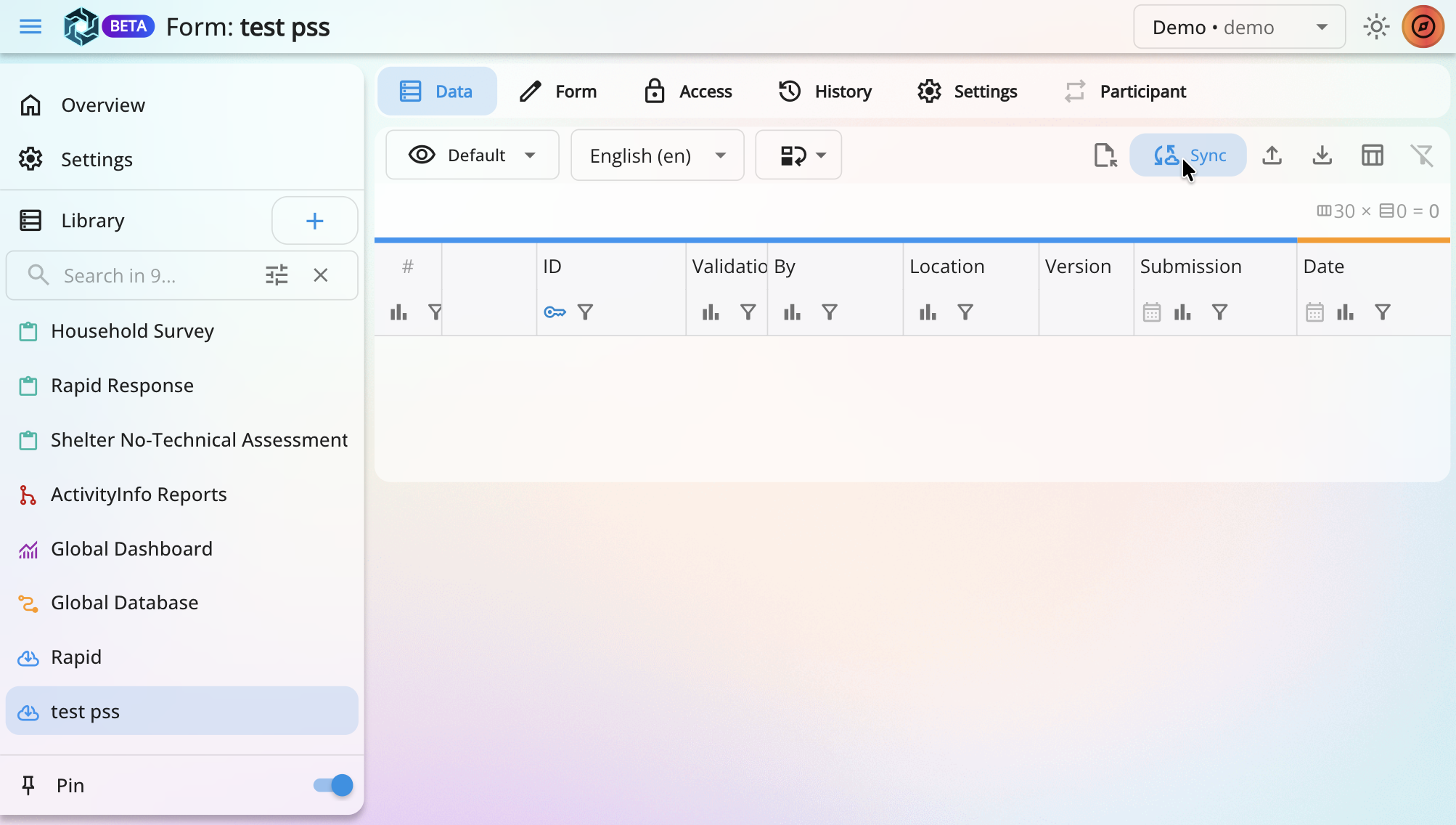
Click the SYNC button to import all existing data for the first time.
Manage your data
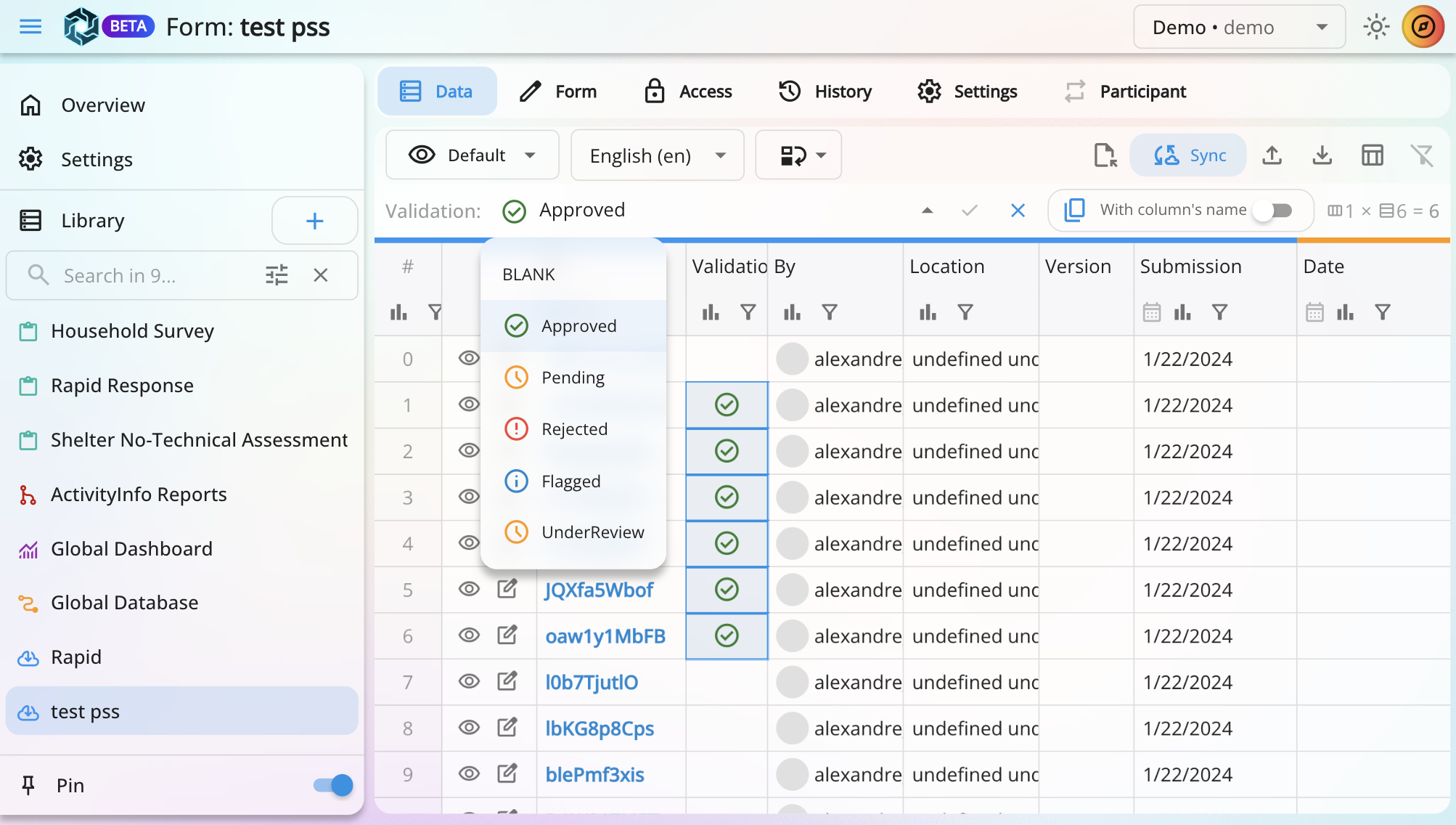
You can now update your data directly from NexusPortal, and changes will be reflected in KoboToolbox.
If updates are made in KoboToolbox, click the SYNC button again to retrieve the latest changes.
Summary
By connecting KoboToolbox to NexusPortal, you can immediately leverage your existing data without disruption, while unlocking powerful additional capabilities.
You benefit from data validation, a simplified and safer way to update data, and full history tracking of all changes.
On top of that, NexusPortal provides flexible permission management, allowing you to control precisely who can view or edit data. This makes collaboration more secure, structured, and scalable across teams.